Last updated: September 2026
A robots.txt file is the first thing most crawlers ask for when they arrive at your site, and it is four lines of plain text that decide what they are allowed to fetch. Get it right and you save crawl budget and keep private sections out of the way. Get it wrong and you can quietly block the pages you most want ranked, or leave the door open to every AI scraper on the internet.
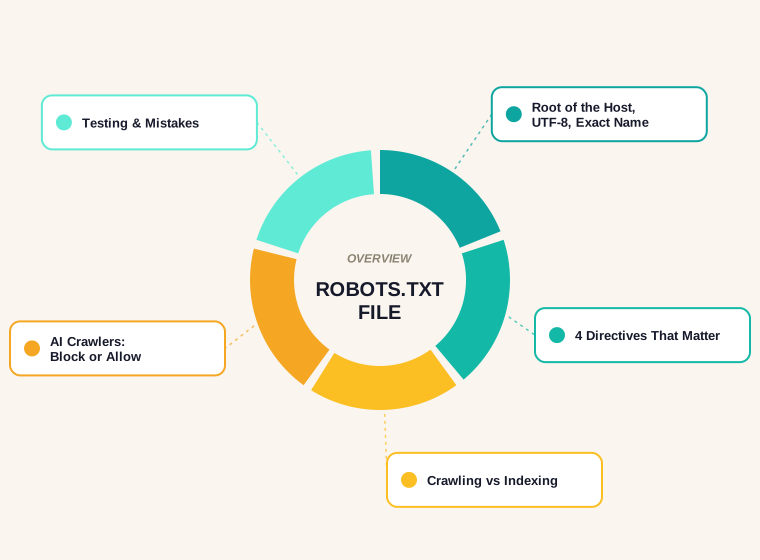
This guide covers what the file does, exactly where it has to sit, the four directives that do all the work, how Google handles errors and caching, and the AI crawler rules that matter in 2026. There is a real file read line by line, and a free tool at the end that writes yours.
What a Robots.txt File Does, and What It Does Not Do
The file tells crawlers which URLs they may request. That is all. Google's own documentation puts it plainly: robots.txt "tells search engine crawlers which URLs the crawler can access on your site", and it is mainly there to stop crawler traffic overloading your server.
What it is not, in Google's words, is "a mechanism for keeping a web page out of Google". A blocked page can still show up in results if another site links to it, usually with no description under the title. If you need a page gone from search, use a noindex tag or password protection, and leave the page crawlable so Google can actually see the instruction.
It is also not a security control. Well-behaved crawlers obey it. Scrapers that are not well behaved simply read your file and ignore it, and now they know which folders you thought were worth hiding.
Where the File Has to Live
These rules are not stylistic. Break one and the file is ignored entirely.
- Name it exactly
robots.txt, in lower case. The filename is case-sensitive. - Put it at the root of the host:
https://example.com/robots.txt. A file in a subfolder does nothing. - One file per host. Rules apply only to the protocol, host and port they are served from, so
blog.example.comandexample.comeach need their own. - Save it as UTF-8 plain text. A word processor that adds its own formatting will break the parsing.
If your site is on a subdomain from a website builder, check whether you can edit the file at all before planning around it.
The Four Lines That Do All the Work
Almost every robots.txt file is built from four directives.
User-agent:which crawler the following rules apply to.*means every crawler, though Google notes that AdsBot crawlers ignore the wildcard and must be named.Disallow:a path the crawler should not request.Allow:an exception that carves a path back out of a Disallow.Sitemap:the full URL of your sitemap. It applies to the whole file, not to one group, and you can list more than one.
Anything after a # is a comment and is ignored, which is the easiest way to leave a note for the next person who edits the file. Two details catch people out: rules are case-sensitive, so /Admin/ and /admin/ are different paths, and a crawler only ever follows one group, the most specific one that names it.
A Real Robots.txt File, Read Line by Line
Examples in most guides are invented. Here is a live one from a large publisher, captured while writing this guide.
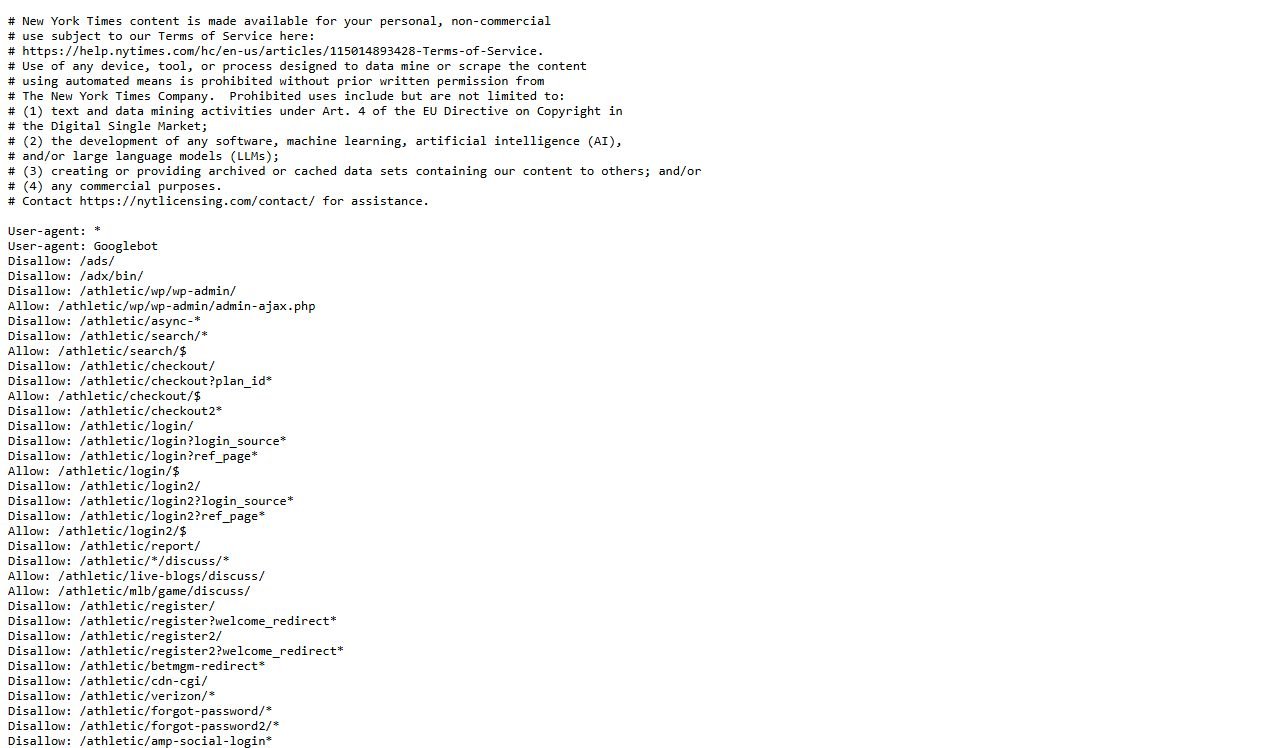
Three things are worth copying from it. The comment block states the publisher's position on AI training, which costs nothing and sets expectations. The rules themselves block checkout, login, search and admin paths, which are exactly the pages that waste crawl budget and should never rank. And Allow: lines sit underneath broader Disallow: lines to re-open single URLs, such as one file inside an otherwise blocked folder.
What Google Actually Does With Your File
Four behaviours are documented, and each one changes how you should handle mistakes.
- Size limit: Google enforces a limit of 500 kibibytes. Anything past that is ignored, so put your important rules first.
- Caching: Google "generally caches the contents of robots.txt file for up to 24 hours". A fix you push today may not be acted on until tomorrow.
- A 404 response: Google treats 4xx errors as if no file existed, and assumes there are no crawl restrictions at all.
- A 5xx response: Google pauses crawling for about 12 hours, then falls back to the last cached copy for up to 30 days. A robots.txt that throws server errors is worse than one that is missing.
The practical takeaway: after any change, load the URL yourself and confirm it returns 200 with the text you expect, then wait a day before judging whether Google has picked it up.
A Minimal Robots.txt File You Can Copy
Most sites do not need anything clever. This is a complete, valid file for a normal business site:
# Allow everything except the pages that should never rank
User-agent: *
Disallow: /admin/
Disallow: /cart/
Disallow: /checkout/
Disallow: /?s=

Sitemap: https://example.com/sitemap.xml
Three notes on that file. The /?s= line blocks internal search result pages, which are a classic source of thin, near-duplicate URLs that eat crawl budget. There is no Allow: line, because anything not disallowed is already allowed by default. And the Sitemap line sits on its own at the end, where it applies to every crawler rather than to one group.
Two directives you may see in older guides are worth skipping. Crawl-delay is not supported by Google, which decides crawl rate itself, although Bing does read it. And Noindex: inside robots.txt was never an official directive; Google stopped honouring it in 2019, so a line like that today does nothing at all.
If your site runs on WordPress, Shopify or a similar platform, check whether the platform already serves a generated robots.txt before you upload your own. Some generate the file dynamically, and a static file you upload may either be ignored or override rules the platform needs.
Robots.txt vs Noindex: The Mistake That Backfires
This is the single most common robots.txt error, and it is worth understanding before you block anything.
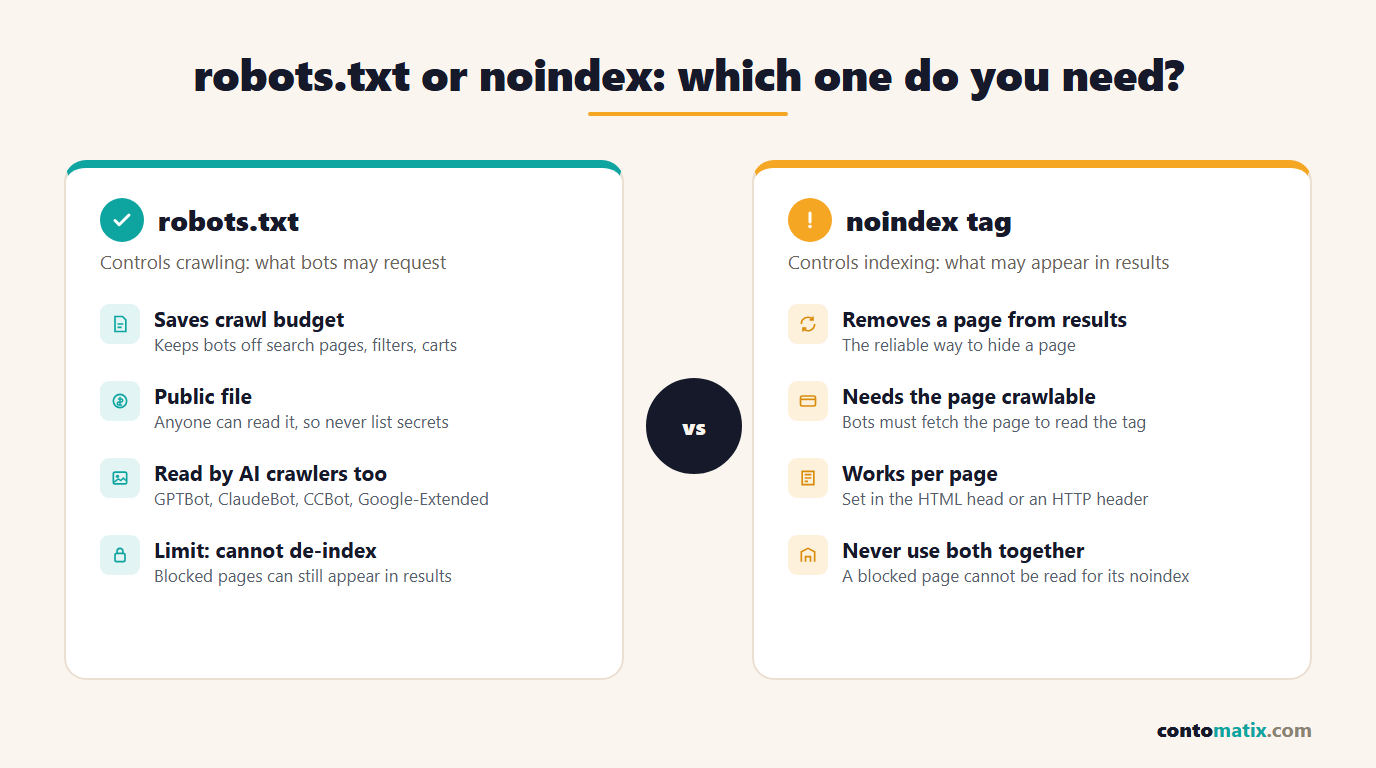
If you block a URL in robots.txt and add a noindex tag to it, the noindex will never be seen, because the crawler is not allowed to fetch the page and read the tag. The page can sit in the index indefinitely on the strength of inbound links alone.
So the rule is simple. To keep something out of search results, allow crawling and use noindex. To stop crawlers hammering low-value URLs such as faceted filters and internal search results, use the robots.txt file. Use one or the other for a given URL, not both.
AI Crawlers and Your Robots.txt File in 2026
The list of crawlers reading your file has grown well beyond search engines. The main AI crawlers that document robots.txt support are GPTBot (OpenAI), ClaudeBot and anthropic-ai (Anthropic), Google-Extended (Google's AI training control, separate from Googlebot) and CCBot (Common Crawl, which many models train on).
There is a real trade-off here, and no single right answer. Blocking them protects your content from being used for training. It may also reduce the chance of being quoted in AI answers, which is becoming a traffic source of its own. Publishers with licensing deals tend to block. Businesses that want visibility inside AI answers tend to allow.
One point people miss: Google-Extended controls AI training use, not whether you appear in Google Search. Blocking it does not remove you from regular results.
Build Your Robots.txt File in Two Minutes
You can write it in a text editor, but the syntax is fussy and a stray slash changes the meaning. Our free robots.txt generator builds the file in the browser, with a checkbox for the AI crawler block above.
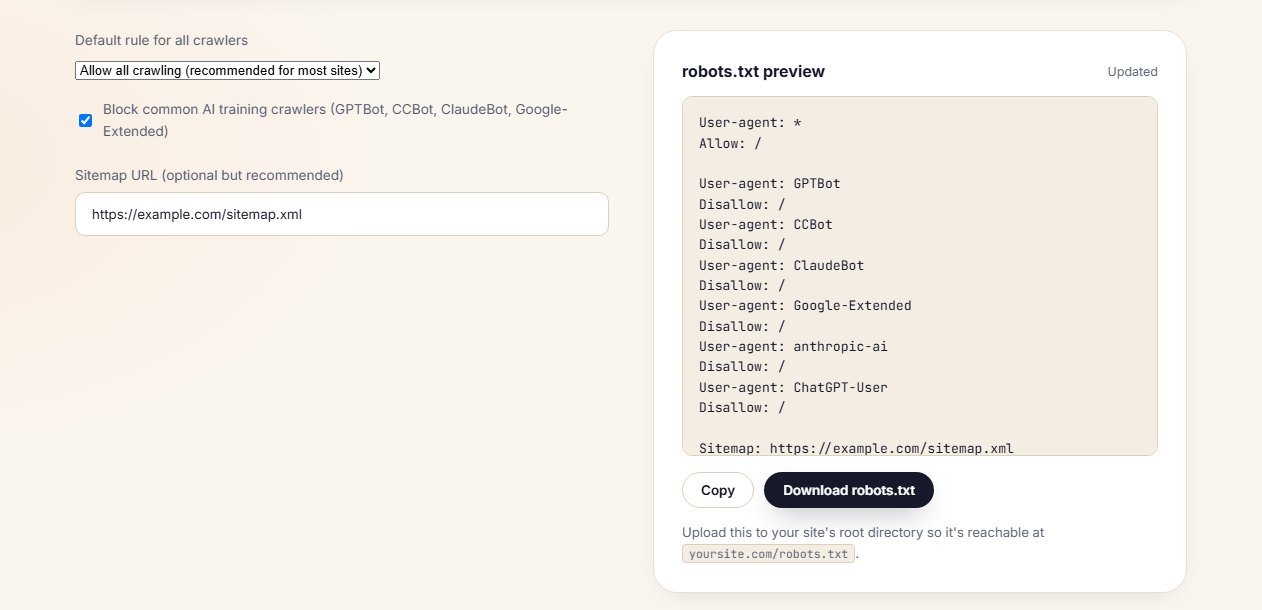
- Choose whether crawlers are allowed by default. For most sites the answer is yes.
- Decide on AI crawlers, using the trade-off above.
- Add the paths worth blocking: admin, cart, checkout, internal search, thank-you pages.
- Add your sitemap URL. If you don't have one yet, our sitemap generator will create it.
- Download the file, upload it to the site root, then open
yourdomain.com/robots.txtin a browser to confirm it is live.
Common Robots.txt Mistakes
- Blocking CSS and JavaScript. Google renders pages like a browser. Block the files it needs and your page can be judged on a broken layout.
- Leaving a staging rule live.
Disallow: /on a staging site is correct, and catastrophic if it ships with the live site. - Blocking a page you also want de-indexed. See the section above; use noindex instead.
- Forgetting the trailing slash.
Disallow: /newsblocks/news-archivetoo.Disallow: /news/does not. - Mixing up case. Paths are case-sensitive, so
/PDF/and/pdf/are two different rules. - Blocking the sitemap path. Your sitemap URL must stay crawlable, or the Sitemap line is pointless.
How to Test a Robots.txt File
Three checks, in order, catch nearly everything:
- Open the URL. It must return 200 and the text you wrote, not a 404 page or an HTML error page.
- Use the robots.txt report in Google Search Console. It shows the version Google last fetched, when it fetched it and any parsing issues. This is the version that matters, not the one on your server.
- Spot-check a blocked URL. Run it through URL Inspection in Search Console. If the page should be crawlable and the tool says "blocked by robots.txt", a rule is wider than you intended.
Repeat the checks after any site migration or CMS change, because plugins and hosts regularly overwrite the file without warning.
Quick Recap
- A robots.txt file controls crawling, not indexing.
- It has to be named exactly, served from the host root, and written in UTF-8.
- User-agent, Disallow, Allow and Sitemap do all the work;
#starts a comment. - Google reads 500 KiB, caches for about 24 hours, treats a 404 as "no restrictions", and falls back to cache on 5xx errors.
- Never pair a robots.txt block with a noindex tag on the same URL.
- AI crawlers read the file too, and blocking them is a business decision, not a technical default.
Frequently Asked Questions
What is a robots.txt file?
It is a plain-text file at the root of your domain that tells crawlers which URLs they may request. Google describes it as a way to manage crawler traffic, not a way to keep pages out of search results.
Where do I put the robots.txt file?
At the root of the host, so it loads at yourdomain.com/robots.txt. It cannot sit in a subfolder, and every subdomain needs its own file.
Does a robots.txt file stop a page appearing in Google?
No. A blocked page can still appear if other sites link to it, usually without a description. To keep a page out of results, allow crawling and use a noindex tag.
How big can a robots.txt file be?
Google parses up to 500 kibibytes and ignores everything after that, so put the rules that matter at the top of the file.
How long does Google take to notice a change?
Google generally caches the file for up to 24 hours, and longer if it cannot refresh it. Make the change, confirm it loads in a browser, then allow a day.
What happens if my robots.txt returns a 404?
Google treats 4xx errors as though no file exists and assumes there are no crawl restrictions. A missing file is safer than a broken one, because 5xx server errors make Google pause crawling and fall back to its cached copy.
Should I block AI crawlers in robots.txt?
It depends on your goal. Blocking GPTBot, ClaudeBot, CCBot and Google-Extended keeps your content out of AI training, but can also reduce how often you are cited in AI answers. Google-Extended affects AI training only, not your normal Google Search visibility.
Do I need a robots.txt file at all?
A small site with nothing worth blocking can live without one. Most sites benefit from a minimal file that allows crawling and points to the sitemap, if only to avoid 404s in server logs.
How do I test my robots.txt file?
Open the URL in a browser to confirm it returns 200 with the right text, check the robots.txt report in Google Search Console for the version Google fetched, then inspect a specific URL to confirm it is not blocked by mistake.
Can robots.txt hide private pages?
No. The file is public, so listing a folder in it advertises that the folder exists. Anything genuinely private needs a login or server-side protection.