Last updated: October 2026
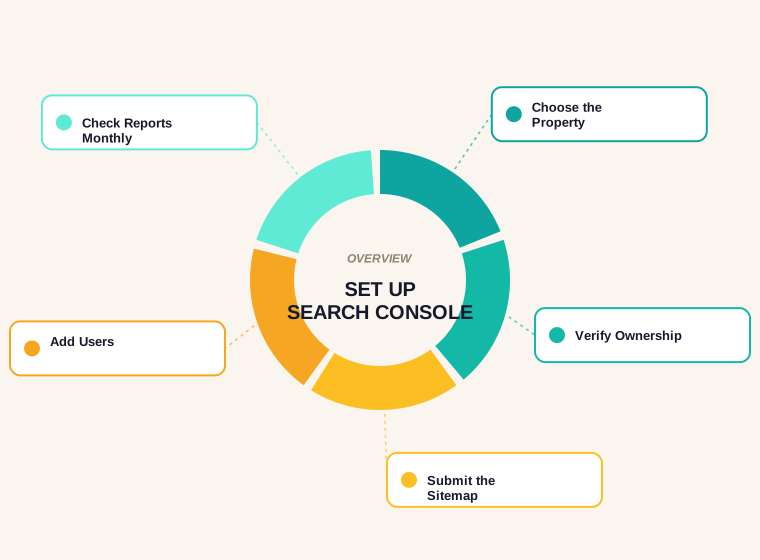
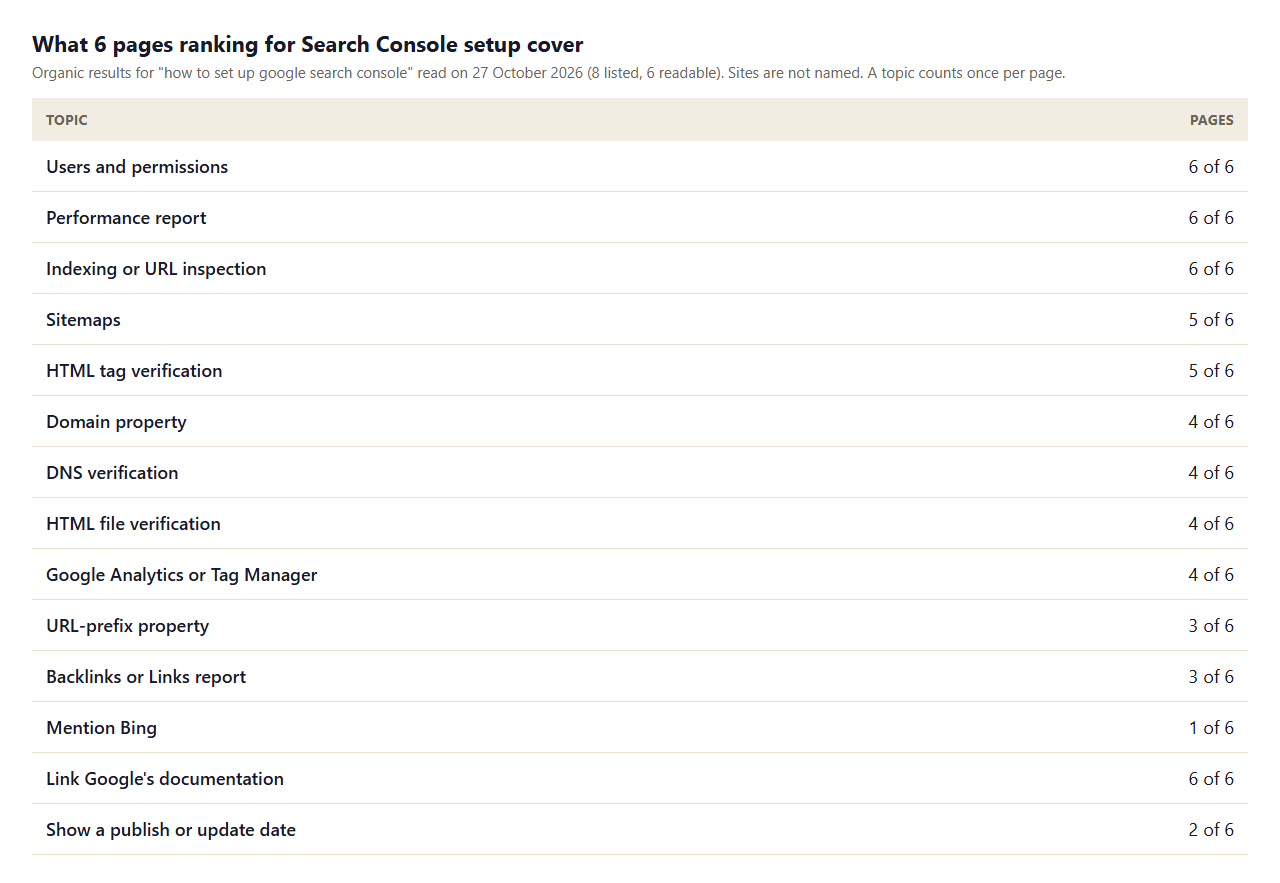
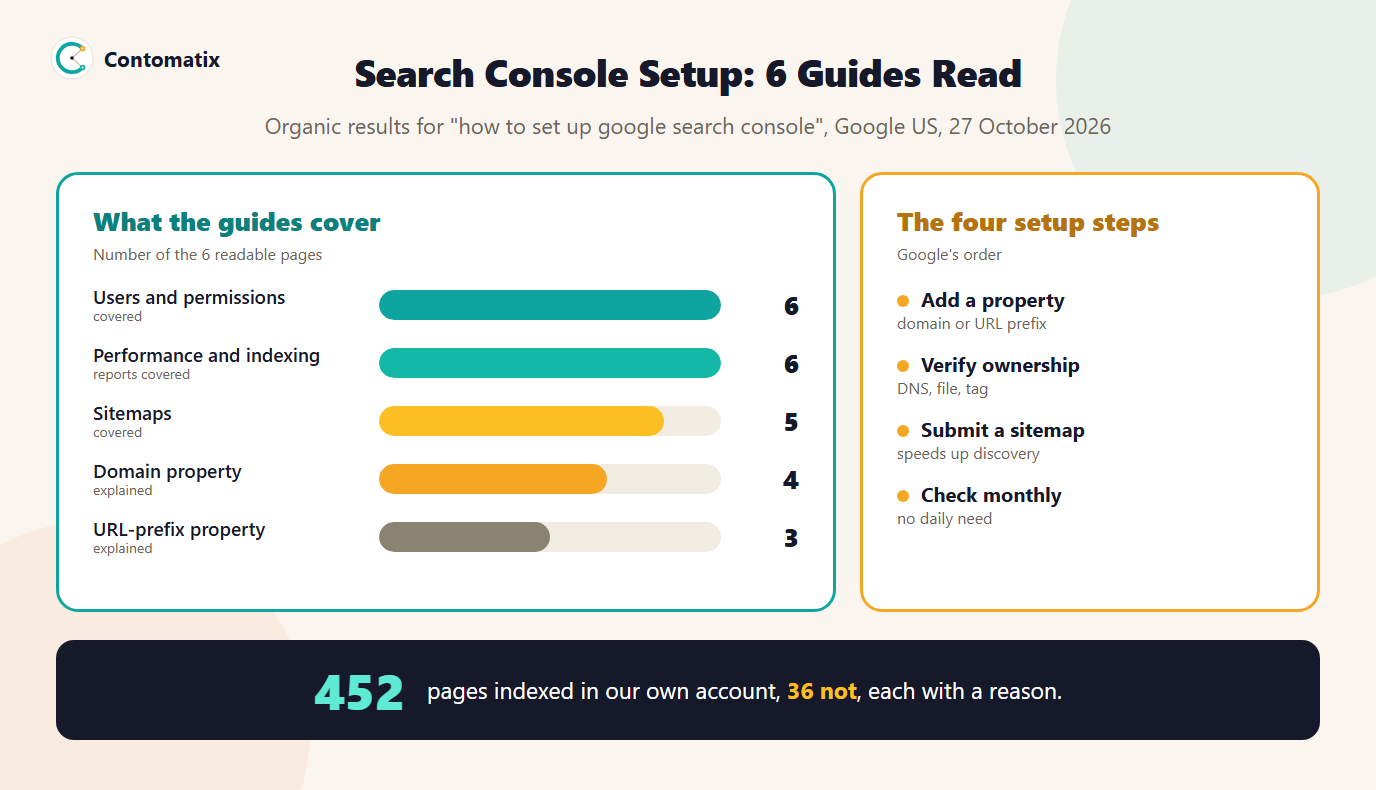
To set up Google Search Console you add a property for your site, prove you own it, submit a sitemap and add anyone who needs access. Google's getting-started guide lists the same order and adds two useful points: there is no need to sign in every day, and checking about once a month, or when you change content, is enough. We read 6 pages that rank for the question on 27 October 2026. All 6 cover users, the Performance report and indexing, but 3 of 6 say it is free, 1 give numbered steps and only 2 show a date.
This guide walks through each step with Google's own wording, shows our real numbers from our own account (452 pages indexed, 36 not, and the reason for each), and tells you which reports to open first. For what the Performance numbers mean, read Search Console impressions explained.
What Is Google Search Console? (Search Console Google)
Google describes Search Console as a tool that helps anyone with a website understand how they perform on Google Search and what they can do to improve their appearance in search. It reports on how Google crawls, indexes and serves your site. It is free, it does not replace analytics, and it shows data from Google's side: which queries showed your pages, how often people clicked, which pages are indexed and which are not, and what Google found wrong.
How to Set Up Google Search Console: Step by Step
- Sign in with a Google account you will keep. Use a shared or business account if more than one person needs access.
- Add a property. Choose Domain or URL prefix (see the next section).
- Verify ownership with one of the methods Google lists.
- Submit your sitemap so Google can find your pages faster.
- Add users with the right permission level.
- Wait for data. Reports fill in over time, so check back after a few days.
- Check monthly. Google says there is no need to sign in every day, because it emails you when it finds new issues.
Domain Property or URL-Prefix Property?
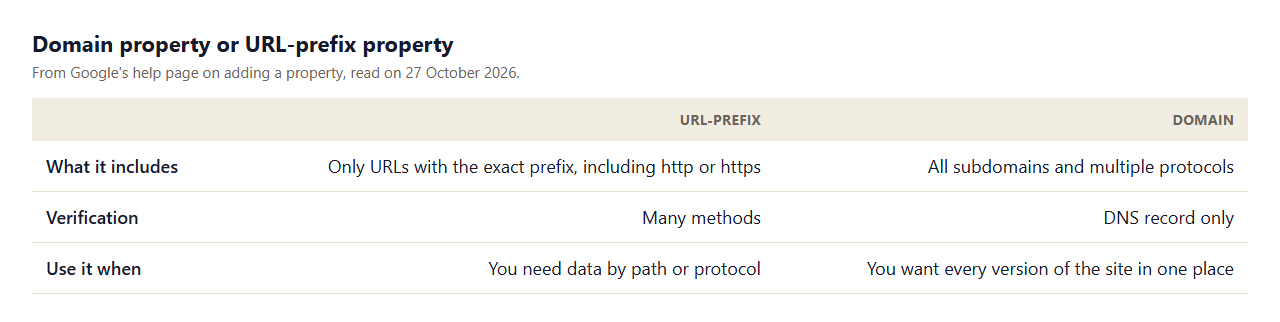
Google's help page explains the two website property types. A URL-prefix property includes only URLs with the specified prefix, including the protocol, so http and https are separate, and so are www and non-www. A domain property includes all subdomains and multiple protocols. Verification differs: a URL-prefix property can use many methods, and a domain property can only be verified with a DNS record. 4 of 6 guides explain domain properties and 3 explain URL prefix.
Which should you choose? A domain property gives the full picture and suits most sites, if you can add a DNS record. A URL-prefix property is simpler when you cannot edit DNS, or when you want data for one path, such as a language folder. Ours is a URL-prefix property for https://contomatix.com/, because it is the version we use. If you have several versions of a site, Google's site move guidance asks you to verify each variant, so a domain property can save effort.
How to Verify Ownership: DNS, HTML File and HTML Tag
- DNS record. Add a record at your domain provider. 4 of 6 guides cover it. Google says this method is required only for a domain property, and that using it on a URL-prefix property also verifies the domain property.
- HTML file. Upload a file to your site's root (4 of 6 cover it). Keep the file after verifying.
- HTML tag. Add a meta tag to your home page's head (5 of 6 cover it).
- Google Analytics or Tag Manager. If you already use them, 4 of 6 guides note you can verify through them, as long as the code stays on the site.
Google also says you can add multiple verification methods in the property's settings, in case one stops working, for example if a template change removes a tag. Verification lasts as long as Search Console can confirm that the token is present and valid, and you are notified if it cannot.
Google Search Console Sitemap: How to Submit It
5 of 6 guides cover sitemaps. Google says submitting a sitemap through Search Console might speed up your site's discovery, and that the Sitemaps report shows how many of the submitted URLs have been indexed. To submit one, open Sitemaps, enter the path, such as sitemap.xml, and select Submit. You can check it first with our sitemap validator.
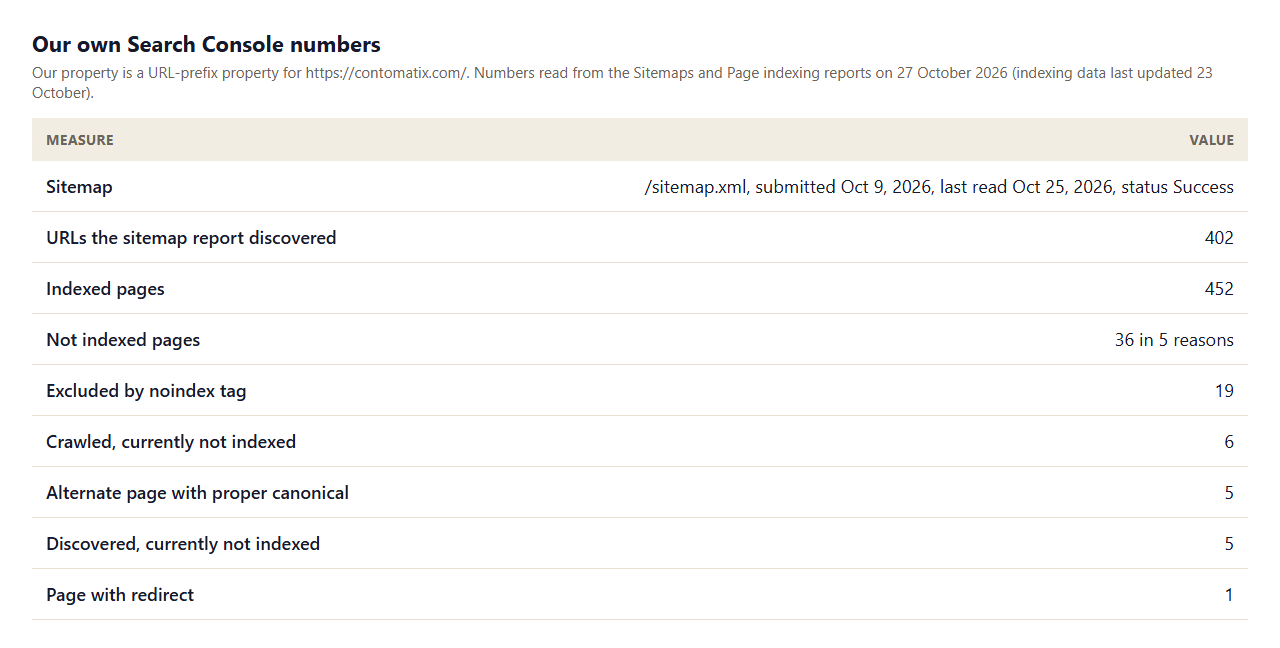
Here is ours. We submitted /sitemap.xml on Oct 9, 2026, Google read it on Oct 25, 2026, the status is Success, and the report shows 402 discovered pages. For more on sitemaps, see how to create a sitemap.
Add User to Google Search Console
All 6 of 6 guides cover users and permissions. In Settings, open Users and permissions and add the person's Google account email. Search Console has several permission levels, so give the lowest one that lets the person do their job and check Google's help page for what each level can do. Give owner access only to people you trust, and remove people who leave. Remember that multiple people can verify ownership of the same property.
SEO Google Search Console: The Reports to Check First
6 of 6 guides cover the Performance report and 6 cover indexing. Open these first:
- Page indexing. It shows which pages are indexed and why others are not. Ours showed 452 indexed and 36 not, split into five reasons: 19 excluded by a noindex tag (we put it there on purpose), 6 crawled but not indexed, 5 alternate pages with a proper canonical tag, 5 discovered but not indexed and 1 page that redirects. Not every "not indexed" is a problem, and the reason tells you which to act on.
- Performance. Queries, pages, countries, devices, clicks and impressions.
- Sitemaps. Whether Google can read your sitemap and how many URLs it found.
- Core Web Vitals and Enhancements. Real-user page experience and structured data status. See how to improve Core Web Vitals.
- Manual actions and Security. Check these occasionally for problems.
Google Search Console Keywords: Using the Performance Report
The Performance report is a free source of keyword ideas, because it shows the queries your pages already appear for. To use it for keyword research: filter by a page, sort by impressions, and look for queries with many impressions and few clicks, which are chances to improve a title or add a section. Also look for queries that fit a different page. Our guide to long-tail low-competition keywords explains how to choose terms, and the Performance data also helps you spot two pages competing for one query. A word of caution: the table shows a limited number of rows and omits rare queries, so do not treat it as a complete list.
How to Check Backlinks in Google Search Console
3 of 6 guides cover the Links report. It shows external links, top linked pages, top linking sites and top linking text. In our own report on 21 October 2026 we found 24 external links from 10 sites. The report is a sample, not a full list, so treat it as a starting point. To check the attribute of a link, paste the linking page's HTML into the dofollow link checker. For what the numbers meant for us, see what is link building.
Google Search Console vs Google Analytics
They answer different questions. Search Console shows what happens before the click: queries, impressions, position and indexing. Google Analytics shows what happens after: sessions, behaviour and conversions. Use both. Search Console tells you whether Google can find and show your pages; analytics tells you what visitors do next. Neither replaces the other.
How to Read the Page Indexing Report
The report splits pages into indexed and not indexed, then lists the reasons for the second group. Each of the five reasons in our account means something different, and only some need action:
- Excluded by noindex tag (19 for us). The page tells Google not to index it. That is fine if it is deliberate, such as a thank-you or internal page. Check that no important page carries the tag by mistake.
- Crawled, currently not indexed (6). Google fetched the page but has not added it to the index. Improve the page's content, make sure it is not a near-duplicate, link to it from other pages and wait.
- Alternate page with proper canonical tag (5). The page points to another URL as the preferred version. That is normal for duplicates and parameter URLs.
- Discovered, currently not indexed (5). Google knows the URL but has not crawled it yet. Internal links and a sitemap help.
- Page with redirect (1). The URL redirects elsewhere, so the destination is what gets indexed. Make sure the redirect is permanent and the destination is correct. See SEO site migration.
Our own 36 not-indexed pages are about half deliberate noindex pages and half pages that need time or improvement. Seeing it broken down like this tells you what to fix first. If you fix something, Search Console lets you validate the fix and then re-checks the pages over time.
What to Do in the First Week After Setup
- Day 1: verify ownership, add a backup verification method, submit the sitemap, and add the people who need access.
- Day 2 to 3: open the Sitemaps report and check that Google read the file without errors.
- Day 4 to 7: open Page indexing and Performance as data arrives. Note the number of indexed pages and the top queries as your baseline.
- End of week: use URL inspection on your most important pages to see whether Google has indexed them and how it renders them.
- Then: set a monthly reminder to check reports, and write down the numbers so you can compare them later.
Writing the baseline down matters. In a few months you will want to know whether the number of indexed pages and impressions has gone up, and without a starting point you cannot say.
Common Search Console Setup Mistakes
- Verifying the wrong version. A URL-prefix property for http will not show https data.
- Removing the verification token. Keep the file, tag or DNS record in place.
- Never submitting a sitemap. Google says it might speed up discovery.
- Giving everyone owner access. Use the lowest permission needed.
- Panicking about every not-indexed page. Read the reason first. Ours include deliberate noindex pages.
- Checking daily. Google says monthly is enough, with email alerts for new issues.
How We Read the Data
- Page data comes from the organic results for "how to set up google search console" on Google US, 27 October 2026. 8 were listed; 6 returned a readable page (one listed page was Google's own product page, which we did not read, and one was too short). A topic counts once per page when its term appears in the text.
- Google statements come from its Search Console getting-started guide and its help pages on verifying and adding a property, read on the same day.
- Our numbers come from the Sitemaps and Page indexing reports in our own Search Console on 27 October 2026 (indexing data last updated 23 October), and from the Links report on 21 October 2026.
Key Takeaways
- Add a property, verify, submit a sitemap, add users and check about once a month.
- A domain property covers all subdomains and protocols and needs DNS verification. A URL-prefix property covers one prefix and has many verification methods.
- Google says a sitemap might speed up discovery.
- Our account shows 452 indexed pages and 36 not indexed, each with a reason.
- Use Performance for keyword ideas and the Links report as a sample of backlinks.
Frequently Asked Questions
How do I set up Google Search Console?
Add a property, verify ownership with DNS, an HTML file, an HTML tag or Google Analytics, submit your sitemap and add users.
Is Google Search Console free?
Yes. Google describes it as a tool to help anyone with a website understand their performance in Google Search.
Should I use a domain property or a URL-prefix property?
A domain property covers all subdomains and protocols and needs DNS verification. A URL-prefix property covers one exact prefix and allows other methods.
How long does it take for data to appear?
Reports fill in over time, so check back after a few days. Google does not give a fixed time.
How often should I check Search Console?
Google says around once every month, or when you change content. It emails you if it finds new issues.
Do I have to submit a sitemap?
No, but Google says submitting one through Search Console might speed up discovery of your pages.
How do I add a user to Google Search Console?
Open Settings, then Users and permissions, and add the person's Google account email with the lowest permission they need.
What is the difference between Search Console and Google Analytics?
Search Console shows what happens before the click, such as queries and indexing. Analytics shows what visitors do on your site.
Is there a Google Search Console alternative?
Other search engines offer their own webmaster tools, such as Bing Webmaster Tools. None replaces Google's data about how Google crawls and shows your site.


