Last updated: October 2026
Seeing blocked by robots.txt in Google Search Console can mean two very different things. Either an important page is being kept away from Google by accident, or Google is flagging a URL it has put in its index even though it was never allowed to read the page. The first problem costs you rankings. The second one puts a bare, description-less result in search that you probably did not intend to publish.
This guide is the diagnosis-and-fix walkthrough for both Page indexing statuses. It covers what each one means, how to find the exact rule responsible, the causes that show up most often, how to fix them, when the block is perfectly fine, and how to confirm that the fix worked. If you need the basics of the file itself, our complete robots.txt guide covers syntax and placement, so this article stays focused on troubleshooting.
The Two Statuses and What They Actually Mean
Search Console's Page indexing report groups URLs by whether Google indexed them. Two of its reasons involve robots.txt, and they sit in different places in the report. One is listed among the pages that are not indexed. The other is a warning attached to pages that are indexed. Google's help page heads the first one "URL blocked by robots.txt", while the row in the report reads as "Blocked by robots.txt", and the second one is called "Indexed, though blocked by robots.txt".
The first status means Google was stopped by your robots.txt file and the URL did not make it into the index. Google adds a caveat in the same entry: a block does not guarantee the page stays out of search, because if Google can find other information about the URL without loading it, there is a very small chance it may still be indexed.
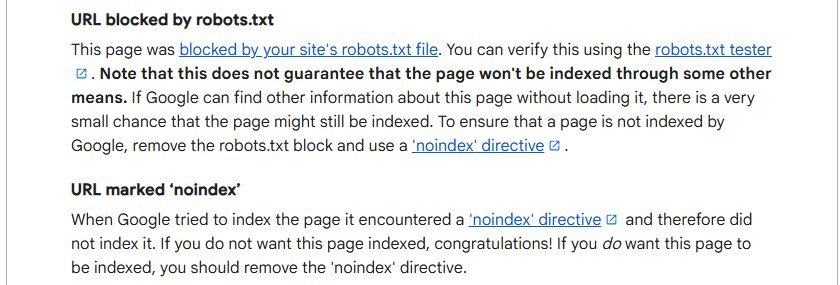
The second status is that "other means" case in practice. The URL is in the index, but Google could not crawl it, so it knows little more than the address and whatever other pages say about it. The status is shown as a warning rather than an error because nothing is technically broken: Google followed your robots.txt rule and still decided the URL was worth listing.
Why a Blocked URL Can Still Be Indexed
The confusion comes from treating crawling and indexing as one step. They are separate. Robots.txt tells a crawler which URLs it may request. It says nothing about whether a URL may appear in results. If other pages link to a URL, Google learns that it exists and can list it without ever fetching it.
Google states this plainly in its robots.txt introduction: a page blocked with robots.txt can still show its URL in search results, but without a description. That matches what site owners see. The result usually shows the page address or a title built from link text, and a note that no information is available for the page.
The same documentation is just as clear about the right tool for keeping a page out of search. For that job it points to noindex or password protection, not to robots.txt. That distinction explains most cases of "Indexed, though blocked by robots.txt". Someone added a Disallow line hoping to hide a page, and the page showed up in search anyway.
How to Find the Rule Causing the Block
Start in the report itself. Open the status, click one of the example URLs and use the inspection icon to run the URL Inspection tool. The inspection result tells you whether crawling is allowed, and for a blocked page it shows that the crawl was blocked by robots.txt.
Next, read the file Google actually sees. In Search Console, the robots.txt report lives in the property settings. It lists the robots.txt files Google found for your site, when each was last fetched, the fetch status and any parsing problems. Google notes that errors stop a rule from being used, while warnings do not. If the fetch status is wrong or the version is old, you have found a problem before reading a single rule.
With the live file open, work through it by hand. Match each Disallow path against the blocked URL, remembering these behaviours from Google's robots.txt specification:
- Paths are case sensitive. A rule for /Fish does not match /fish.
- The most specific rule wins. Google applies the rule with the longest matching path, so a longer Allow can carve an exception out of a shorter Disallow.
- Ties go to the less restrictive rule. If an Allow and a Disallow match with the same specificity, the Allow applies.
- Wildcards count. The asterisk matches any run of characters and the dollar sign anchors the end of the URL, so one short pattern can block far more than it appears to.
If a rule matches and you cannot see why, test a few exact URLs against it instead of guessing. Understanding how groups and user agents interact is often the missing piece when two sections of a file appear to contradict each other, and the full guide linked above walks through that.
The Usual Suspects Behind Blocked Pages
When a whole section of a site flips to blocked by robots.txt, the cause is almost always one of a short list.
A staging rule that went live
Development sites often carry a Disallow rule covering the entire site to keep them out of search. If that file is copied to production during launch, every URL becomes blocked. This is the classic cause, and the one to check first when a new site has no pages indexed at all.
A CMS or SEO plugin setting
Many content management systems have a "discourage search engines" option or generate a virtual robots.txt of their own. A setting toggled during a redesign can quietly replace the file you wrote by hand. If your physical file and the live file disagree, look at the platform settings before the server.
An over-broad pattern
A rule intended for one folder can catch unrelated URLs. A wildcard that blocks every URL containing a query string will also block filtered pages you may want crawled. Short prefixes are the usual offender, because a path matches by prefix: a rule for /blog blocks /blog-tips too.
Blocked resources
Blocking CSS, JavaScript or image folders can stop Google from rendering a page properly. This often shows up as pages that are crawlable but look broken in the URL Inspection screenshot. Resource files rarely need blocking, and leaving them open is the safer default.
Parameter and faceted URLs
Sites that block filter and sort parameters to save crawl budget sometimes see those URLs listed as indexed though blocked. The URLs are linked internally, Google learns they exist, and the block stops Google from reading any canonical or noindex signal on them. Whether that matters depends on how many there are and whether they appear in results.
Step-by-Step: How to Fix "Blocked by Robots.txt"
The correct fix depends on what you want to happen to the URL. Decide that first, because the opposite fixes are easy to confuse.
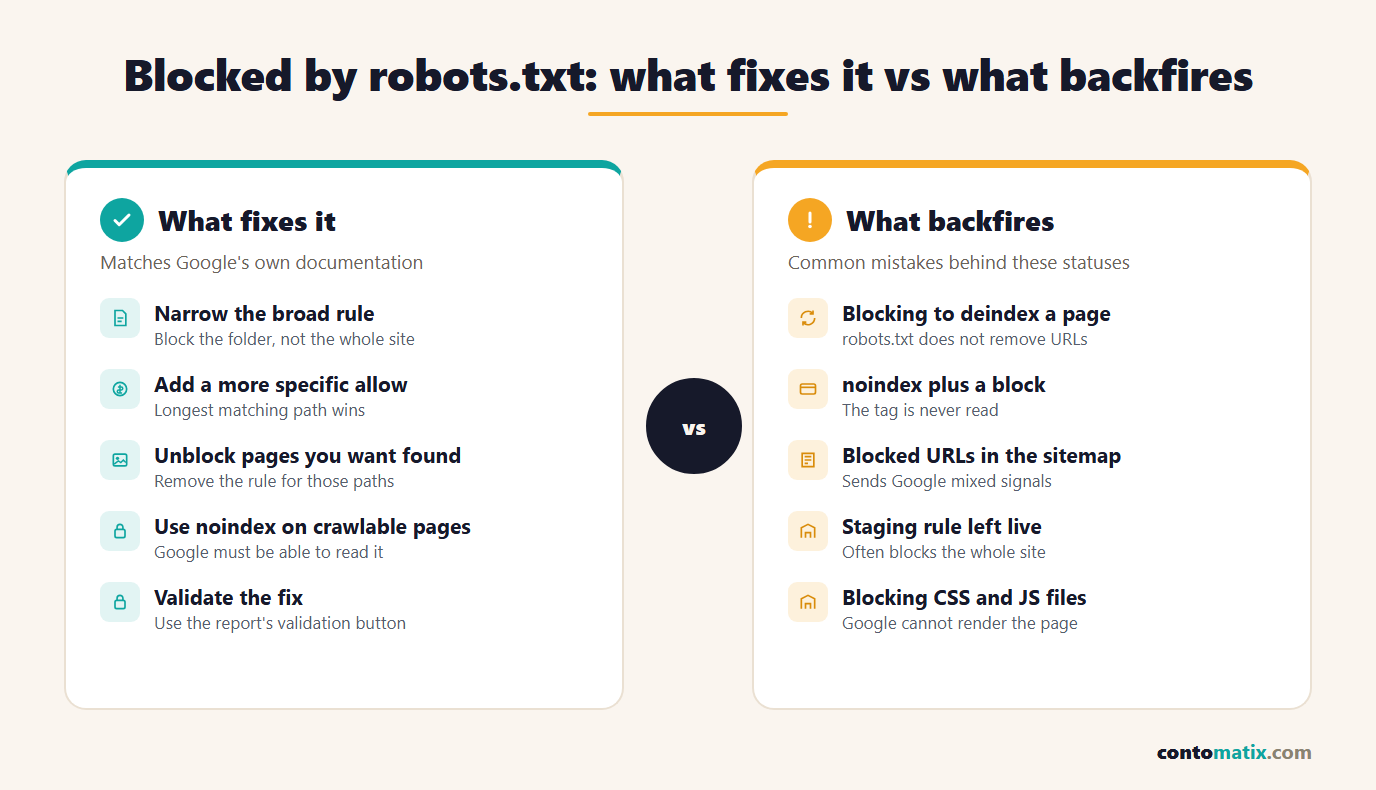
If the page should be indexed, remove or narrow the rule that matches it. Narrowing is usually better than deleting. Replace a broad path with the specific folder you meant to block, or add a longer Allow rule for the exact path that was caught. Save the change to the live file and confirm the new version loads at the root of the host.
Then ask Google to look again. The robots.txt report offers a recrawl request, which Google says is useful after you change rules to unblock important URLs. Google also recrawls the file regularly and generally caches it for up to 24 hours, so waiting a day is normal before the new rules take effect.
Finally, open the issue in the Page indexing report and use the validation option. According to Google's Page indexing report documentation, validation checks a sample first, then recrawls the known URLs with that issue. Google says it typically takes up to about two weeks, and sometimes much longer.
If the page should not be indexed, the fix is different. Remove the robots.txt block and add noindex instead, which is exactly what Google's own help entry recommends. Once Google recrawls the page and reads the tag, the URL drops out. Only after it has gone is it safe to consider blocking again, and even then you rarely need to.
Why Blocking a Page Does Not Remove It (the noindex Trap)
Here is the mistake behind most "indexed, though blocked" warnings. A site owner wants a page out of Google, adds noindex to the page, and also adds a Disallow line to be extra safe. The two instructions cancel each other out. Googlebot is told not to fetch the page, so it never sees the noindex tag.
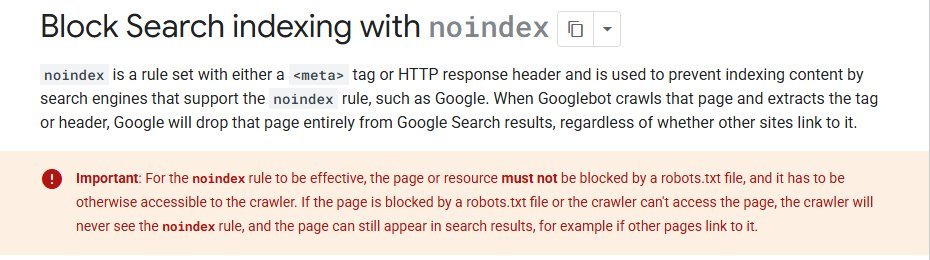
Google's noindex documentation spells it out. For the rule to work, the page must not be blocked by a robots.txt file and must be otherwise accessible to the crawler. If it is blocked, the crawler never sees the rule, and the page can still appear in search results, for example when other pages link to it.
The practical order is therefore: leave the page crawlable, serve noindex through a meta tag or an HTTP header, wait until the page disappears from results, and only then decide whether a robots.txt rule is still useful. Note also that Google does not support a noindex rule written inside the robots.txt file itself, so do not try that route.
When Blocking Is Intentional and Fine
Not every instance of this status is a problem. Robots.txt exists to manage crawler traffic, and some URLs are better left uncrawled. Common examples are internal search result pages, shopping cart and checkout steps, account areas, admin screens and endless calendar or filter combinations. Blocking these saves crawl effort for pages that matter.
The test is whether the URL has any search value and whether it is being surfaced. If a cart URL is simply listed under the blocked status in the Not indexed table, that is Google reporting that your rule works. There is nothing to fix. The "Indexed, though blocked" warning deserves a closer look only when the URL really does appear in results or draws attention you would rather avoid.
For sensitive content, none of this is enough. A robots.txt file is public, and listing a private path in it advertises that the path exists. Pages that must stay private need a login or password, not a Disallow line.
Sitemap Contradictions to Clean Up
A sitemap is a list of URLs you want indexed. Putting blocked URLs in it sends two opposite messages at once, and Search Console will often show the same URL under both a sitemap source and a blocked status. Crawl the sitemap against your robots.txt rules and remove any URL a rule matches. If a URL belongs in the sitemap, fix the rule. If the rule is correct, drop the URL from the sitemap.
The reverse also matters. Make sure your sitemap location is declared correctly in the file and that the file itself is not blocked. Our guide to the robots.txt sitemap directive covers the syntax and the common mistakes with it.
How to Verify the Fix Worked
Do not rely on the validation email alone. Check each layer yourself:
- Load the live robots.txt in a browser and confirm the changed rule is present.
- Check the Search Console robots.txt report to see that Google fetched the new version and shows no parsing errors.
- Run the URL Inspection tool on a few of the affected URLs with a live test and confirm that crawling is allowed.
- For pages you want indexed, request indexing for the most important ones and then watch the Page indexing report over the following weeks.
- For pages you want removed, confirm they are crawlable, carry noindex, and are no longer listed after Google recrawls them.
Expect this to take time. Robots.txt changes are picked up within about a day, but recrawling every affected URL is slower. Large sites may wait weeks for the counts in the report to fall, and the warning count may shrink gradually rather than overnight. Seeing the number move in the right direction is the signal to watch, not a date.
A Short Checklist Before You Close the Ticket
- Decide whether each affected URL should be indexed, hidden, or left uncrawled on purpose.
- Open the live robots.txt and the Search Console robots.txt report to confirm Google sees the same file.
- Find the matching rule, checking case, wildcards and rule length.
- For pages that should rank, narrow or remove the Disallow rule or add a longer Allow rule.
- For pages that should vanish, remove the block and serve noindex instead.
- Remove blocked URLs from the sitemap, and unblock CSS and JavaScript your pages need.
- Request validation in the Page indexing report and recheck after Google recrawls.
Quick Recap
- Search Console shows two statuses: URLs not indexed because they are blocked by robots.txt, and a warning for URLs indexed even though they are blocked.
- Robots.txt controls crawling, not indexing, so a blocked URL can still be listed, usually without a description.
- Find the cause with URL Inspection and the robots.txt report, then match the rule yourself using Google's specificity rules.
- The usual causes are a staging rule left live, plugin settings, over-broad patterns and blocked resources.
- To get a page indexed, narrow or remove the rule and validate. To get it out of search, remove the block and use noindex.
- Noindex only works on pages Google can crawl, so never combine it with a Disallow rule for the same URL.
- Keep blocked URLs out of your sitemap and give Google time to recrawl.
If you are rewriting your file and want a clean starting point, Contomatix offers a free robots.txt generator that builds the rules for you.
Frequently Asked Questions
What does "blocked by robots.txt" mean in Search Console?
It means Google was not allowed to crawl the URL because a rule in your robots.txt file matched it. The page was not indexed as a result, although Google notes there is a small chance it can still be indexed through other information it finds about the URL.
What is the difference between "Blocked by robots.txt" and "Indexed, though blocked by robots.txt"?
The first is a not-indexed reason: the block worked and the URL stayed out of the index. The second is a warning: the URL was indexed anyway, usually because other pages link to it, even though Google could not crawl it.
Can a page blocked by robots.txt still appear in Google?
Yes. Google says the URL can still appear in search results, but the result will have no description because Google could not read the page.
Is "Indexed, though blocked by robots.txt" a serious problem?
Not always. It is a warning rather than an error. It matters if the page should rank, because Google cannot read its content, or if it is a page you wanted hidden. For cart, internal search and admin URLs it is often harmless.
How do I remove a page that is indexed but blocked by robots.txt?
Remove the robots.txt block so Google can crawl the page, then add a noindex meta tag or HTTP header. After Google recrawls and reads the tag, the page drops from results. Password protection is the other option Google recommends.
Why does noindex not work when the page is blocked?
Because Google never fetches the page, so it never sees the tag. Google's documentation says the page must not be blocked by robots.txt for noindex to be effective.
How do I find which robots.txt rule is blocking a URL?
Inspect the URL with the URL Inspection tool, open the robots.txt report in Search Console to see the file Google fetched, then match the URL against each Disallow path. Remember that paths are case sensitive and that the longest matching rule wins.
How long does it take for the status to clear after I fix the file?
Google generally caches robots.txt for up to 24 hours, and validation of a fix typically takes up to about two weeks, sometimes longer. Large sites should expect the counts to fall gradually.
Should blocked URLs be in my XML sitemap?
No. A sitemap should list only URLs you want indexed. Remove any URL a robots.txt rule matches, or change the rule if the URL belongs in the sitemap.
Should I block CSS and JavaScript files in robots.txt?
Generally no. Blocking them can stop Google from rendering your pages as visitors see them. If a page looks broken in the URL Inspection screenshot, check whether a rule is blocking its resource files.


